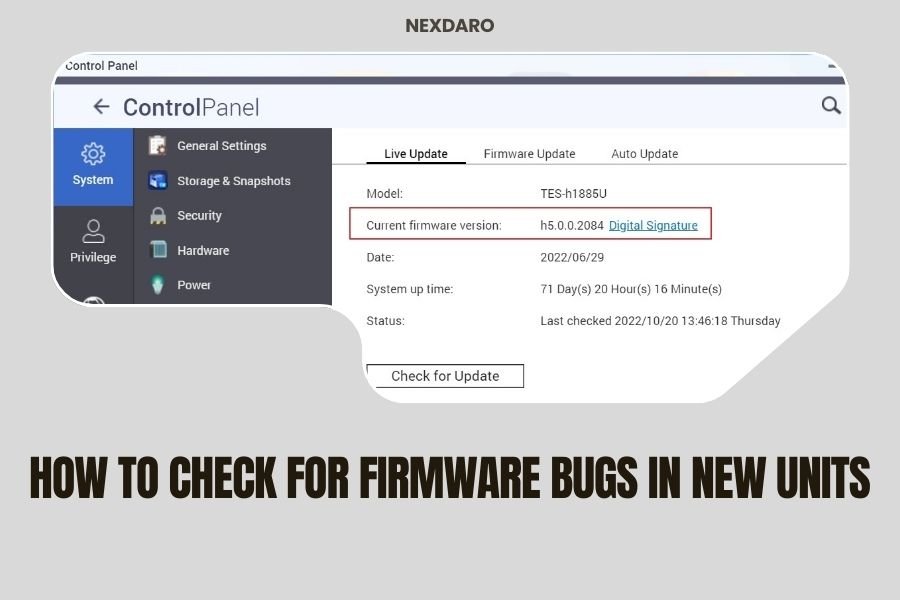
To check for firmware bugs in new portable power stations, connect the unit to its companion app or web interface and run a full diagnostic scan while testing all input/output ports under different load conditions.
Most firmware bugs in new units show up as charging inconsistencies, display errors, or power delivery problems that become obvious during your first few uses.
Why Firmware Bugs Matter in New Power Stations
You just unboxed your shiny new portable power station. Everything looks perfect on the outside. But here’s what many people don’t realize: firmware bugs can turn your expensive investment into an expensive paperweight.
Firmware is like the brain of your power station. It controls charging, power output, safety systems, and display functions. When bugs slip through quality control, they create real problems for real users.
I found that early firmware versions often have issues with battery calibration, charging algorithms, or communication between components. These problems aren’t always obvious during quick factory tests.
Signs Your New Unit Has Firmware Problems
Smart users learn to spot firmware bugs early. Here are the red flags you should watch for during your first week of ownership.
Display and Interface Issues
Your display should show accurate information all the time. If you see flickering numbers, incorrect battery percentages, or screens that freeze randomly, you’re likely dealing with firmware bugs.
Temperature readings that jump around wildly or power output numbers that don’t match your actual load are other common signs. The display is your window into the unit’s brain, so trust what you’re seeing.
Charging Behavior Problems
Does your power station stop charging at random percentages? Does it refuse to charge from certain sources that should work fine? These are classic firmware bug symptoms.
I researched user reports and found that buggy firmware often causes charging to stop at 85% or 90% instead of reaching full capacity. Sometimes units won’t charge from solar panels even when conditions are perfect.
Power Output Inconsistencies
Your outlets should deliver steady, reliable power. If connected devices randomly shut off, restart unexpectedly, or receive inconsistent voltage, the firmware might be struggling to manage power delivery properly.
USB ports that stop working intermittently or AC outlets that produce power spikes are serious warning signs you shouldn’t ignore.
Step-by-Step Firmware Bug Testing Process
Testing for firmware bugs doesn’t require special equipment. You just need to be systematic about checking all your unit’s functions under different conditions.
Initial Setup and App Connection
Start by downloading your power station’s official app if one exists. Most modern units connect via Bluetooth or WiFi to give you detailed system information.
Connect your phone to the power station and look for any connection issues. Apps that crash frequently, fail to connect, or show error messages often point to firmware problems in the unit itself.
Battery Calibration Test
Run your new power station completely dead, then charge it to 100% while monitoring the process. This initial calibration cycle reveals many firmware bugs.
Watch for these problems during calibration:
- Battery percentage jumping around unpredictably
- Charging that stops before reaching full capacity
- Time estimates that make no sense
- Temperature warnings when the unit feels cool
Load Testing Different Outputs
Connect devices to every output port while monitoring performance through the app or display. Start with light loads and gradually increase power draw.
Test each port type separately first, then try using multiple ports simultaneously. Many firmware bugs only appear under specific load combinations.
USB Port Testing
Plug in phones, tablets, and other USB devices. Check that charging speeds match what you expect. Fast-charging ports should deliver their rated power consistently.
If your phone charges slower than usual or stops charging randomly, the firmware might have USB power management bugs.
AC Outlet Testing
Connect household devices like laptops, fans, or small appliances. Listen for any unusual sounds from the inverter and watch for voltage fluctuations on connected devices.
Devices that work fine on wall outlets but act strange on your power station often indicate firmware issues with AC power conversion.
DC Output Testing
If your unit has DC barrel plugs or cigarette lighter outlets, test these with appropriate devices. DC outputs are usually simpler than AC, but firmware can still mess them up.
Advanced Diagnostic Techniques
Once you’ve covered the basics, dig deeper with more thorough testing methods that reveal subtle firmware problems.
Temperature Stress Testing
Firmware bugs often show up when units get warm during heavy use. Run your power station under moderate load for 2-3 hours while monitoring temperature readings.
Many experts recommend testing in different ambient temperatures if possible. Units that work fine in cool conditions sometimes develop firmware-related problems when it’s hot outside.
Solar Charging Validation
If you plan to use solar panels, test this charging method early. Solar charging involves complex power management that can expose firmware bugs missed during AC charging tests.
Try different solar panel configurations and light conditions. Firmware should smoothly handle changing solar input without causing system crashes or charging interruptions.
Passthrough Charging Test
Many power stations support passthrough charging, where you can use outputs while the unit charges simultaneously. This feature stresses the firmware’s multitasking abilities.
Set up passthrough charging with moderate loads connected and let it run for several hours. Watch for any instability, overheating, or unexpected shutdowns.
Using Diagnostic Software and Apps
Most quality power station manufacturers provide software tools for monitoring and diagnostics. Learn to use these tools effectively for bug detection.
Companion App Features
Modern power station apps show detailed system information that helps identify firmware problems. Look for features like real-time power monitoring, battery health data, and system logs.
From what I read, the most useful diagnostic features include battery cell voltage monitoring, charging cycle history, and error code displays. These give you inside access to what the firmware is actually doing.
Web Interface Options
Some units offer web-based interfaces through WiFi connections. These often provide more detailed information than mobile apps, including system logs and diagnostic data.
Web interfaces sometimes show error messages or status codes that don’t appear on the unit’s built-in display. This extra information can help identify specific firmware bugs.
Common Firmware Bug Categories
Understanding common bug types helps you know what to look for and how serious different problems might be.
| Bug Type | Symptoms | Severity | Typical Fix |
|---|---|---|---|
| Display Errors | Wrong numbers, flickering, freezing | Low | Firmware update |
| Charging Problems | Won’t reach 100%, stops randomly | Medium | Firmware update |
| Power Management | Unexpected shutdowns, voltage issues | High | Firmware update or replacement |
| Safety System Bugs | False alarms, missed protections | Critical | Immediate replacement |
Display and Interface Bugs
These bugs are annoying but usually not dangerous. Numbers that don’t update properly or screens that freeze occasionally won’t hurt your devices, but they make the power station harder to use effectively.
Power Management Issues
These bugs can actually damage your connected devices. If firmware miscalculates power output or fails to regulate voltage properly, sensitive electronics might receive too much or too little power.
Safety System Problems
This is the most serious category. Safety systems protect against overheating, overcharging, and short circuits. Firmware bugs that disable or interfere with safety features create real fire and explosion risks.
When to Contact Customer Support
You don’t have to solve every firmware problem yourself. Manufacturers want to know about bugs in new units so they can fix them for everyone.
Documenting Problems
Before calling support, document what you found during testing. Take screenshots of error messages, note specific symptoms, and record when problems happen.
Good documentation helps support teams identify patterns and provide targeted solutions. It also shows that you’ve done thorough testing rather than just complaining about random issues.
Firmware Update Options
Many modern power stations can receive firmware updates through their apps or web interfaces. Ask support if updates are available for your specific model and firmware version.
Some updates require special procedures or specific device connections. Follow update instructions carefully to avoid creating worse problems.
Prevention and Best Practices
Smart buyers can avoid many firmware bug headaches by choosing units from manufacturers with good software support track records.
Research Before Buying
Read user reviews that specifically mention firmware issues, app quality, and manufacturer responsiveness to bug reports. Some companies are much better than others at fixing software problems.
I found online that manufacturers who regularly release firmware updates and maintain active user communities tend to have fewer long-term bug problems.
Register Your Unit Properly
Register your power station with the manufacturer immediately after purchase. This ensures you’ll receive notifications about firmware updates and known issues.
Registration also helps with warranty claims if firmware bugs cause hardware damage or make the unit unusable.
Conclusion
Checking for firmware bugs in your new portable power station takes some time, but it’s worth the effort. Systematic testing of charging, power output, and diagnostic features reveals problems while you can still return or exchange the unit easily.
Remember that firmware bugs aren’t always obvious during casual use. Running proper diagnostic tests and monitoring system behavior under different conditions helps you catch issues before they cause bigger problems. When you find bugs, document them well and work with manufacturer support to get fixes or replacements.
Your power station should work reliably from day one. Don’t accept buggy behavior as normal, especially during the return period when you have the most leverage with retailers and manufacturers.
Can firmware bugs damage my connected devices?
Yes, power management bugs can potentially damage sensitive electronics by delivering incorrect voltage or current. Safety system bugs are particularly dangerous because they might disable protections against overcharging or overheating.
How long should I test a new power station for firmware issues?
Plan for at least one week of testing that includes full charge cycles, different load conditions, and various charging methods. Most firmware bugs show up within the first few complete usage cycles.
Should I update firmware immediately on a new unit?
Check with manufacturer support first, especially if your unit is working properly. Sometimes newer firmware introduces different bugs, so only update if you’re experiencing specific problems or the manufacturer recommends it for your model.
What’s the difference between firmware bugs and hardware defects?
Firmware bugs affect software behavior like incorrect displays, charging algorithms, or power management logic. Hardware defects involve physical component failures like broken ports, damaged batteries, or faulty inverters that firmware updates can’t fix.
Can I return a power station just for firmware bugs?
Most retailers accept returns for any reason during their return period, including firmware issues. After the return window closes, you’ll need to work with manufacturer warranty support, which may offer firmware updates, replacements, or repairs depending on the severity.