Can You Run a Laptop and Monitor Off a Power Station?
On this page (3 sections)
Yes, you absolutely can run a laptop and monitor off a power station. These portable powerhouses are designed to keep your essential electronics charged and running, even when you’re away from an outlet. See Best Portable Power Station Laptop for more details. It’s a fantastic way to maintain productivity or entertainment on the go, making them a reliable backup power source for your devices.
A power station can be a lifesaver for keeping your laptop and monitor powered up during outages or while camping. For another household device to plan for, see our baby monitor backup advice. You just need to ensure the power station’s wattage capacity is sufficient for both devices. It’s a surprisingly simple setup that can drastically improve your ability to work or play without interruption.
- Yes, power stations can power laptops and monitors.
- Check the total wattage needs of your devices.
- Ensure the power station’s output matches or exceeds this need.
- Many power stations offer AC outlets perfect for your monitor and laptop charger.
So, how do you go about powering your setup? We’ve researched the best ways to connect your laptop and monitor to a power station, ensuring everything runs smoothly. Let’s walk through exactly how this works step by step.
Powering Your Tech: Laptop and Monitor Setup with a Power Station
Yes, you absolutely can run a laptop and monitor off a power station. It’s a smart way to extend your workspace or entertainment area beyond the reach of traditional outlets. Think of it as creating your own mobile power hub. We’ve found this setup is especially useful for remote workers, students, or anyone who needs flexibility.
Understanding Your Power Needs: Wattage is Key
Before you plug anything in, let’s talk about the most important factor: wattage. Your power station has a maximum output, and your devices have specific power draws. You need to make sure the power station can handle the combined load without straining itself. This is where you avoid a frustrating shutdown.
What is Wattage?
Wattage is simply a measure of electrical power. It tells you how much energy a device consumes or how much a power source can supply. You’ll typically see wattage listed on your device’s power adapter (for your laptop) and on the back of your monitor.
Calculating Total Wattage
To figure out if your power station is up to the task, you need to add up the wattage requirements of both your laptop and your monitor. Your laptop charger might use around 45W to 90W, while a typical monitor could range from 20W to 60W. For example, if your laptop charger is 65W and your monitor is 30W, your total continuous draw is 95W. To understand how long your power station will last, check the laptop charger wattage.
It’s also wise to consider peak wattage. Some devices, like hard drives or gaming consoles, draw more power when they first start up. While laptops and monitors are usually pretty consistent, it’s good practice to have a little extra headroom. Always aim for a power station that can comfortably exceed your calculated total wattage. We found that adding at least 20-30% to your total can provide a good safety margin.
Choosing the Right Power Station
Not all power stations are created equal. When you’re looking to power a laptop and monitor, you’ll want one that offers more than just USB ports. The AC outlets on most modern power stations are your best friends here.
Key Features to Look For
When selecting a power station for your tech setup, keep these features in mind:
- AC Output Ports: Make sure it has standard wall-style outlets.
- Continuous Wattage Rating: This is the power the station can consistently provide. It should be higher than your combined device wattage.
- Surge Wattage: This is the maximum power it can handle for short bursts, useful for startup.
- Battery Capacity (Wh): Watt-hours tell you how long the power station can run your devices.
- Portability: Consider how much you’ll be moving it around.
Matching Power Station Specs to Your Devices
Let’s say your laptop needs 65W and your monitor needs 30W, totaling 95W. You’d want a power station with a continuous wattage rating of at least 120W-150W. This gives you that buffer we talked about. Many mid-range power stations offer 300W to 1000W of continuous output, which is more than enough for a laptop and monitor. Larger, more powerful stations can even handle multiple devices or higher-draw items like a small refrigerator.
Connecting Your Laptop and Monitor: A Simple Process
The beauty of using a power station is how straightforward the connection process is. You don’t need any special adapters or complex wiring. It’s designed to be as easy as plugging into a wall outlet.
Using the AC Outlets
Most power stations come equipped with one or more standard AC outlets. You’ll simply plug your laptop’s power adapter into one of these outlets. Then, plug your monitor’s power cord into another AC outlet on the power station. That’s it! Your devices will start drawing power as if they were connected to the wall.
Understanding Your Monitor’s Power Input
Many modern monitors have internal power supplies, meaning they plug directly into an AC outlet using a standard power cord. You won’t need a bulky external power brick for these. If your monitor does have an external power adapter, you’ll plug that adapter into the power station, just like your laptop.
Maximizing Uptime: Battery Capacity and Efficiency
Beyond just getting your devices powered, you’ll likely want to know how long you can run them. This is where the battery capacity of the power station comes into play. You’ll see this measured in Watt-hours (Wh).
Calculating Runtime
To estimate how long your power station will last, you can use a simple formula: Runtime (in hours) = (Battery Capacity in Wh * Efficiency Factor) / Total Wattage Draw. We found that a typical efficiency factor for power stations is around 85% to 90% because some energy is lost in the conversion process.
Let’s use our example: a 500Wh power station powering a laptop and monitor that draw a combined 95W. Runtime = (500 Wh * 0.85) / 95W = 425 Wh / 95W = approximately 4.47 hours. This gives you a good idea of your mobile workstation’s longevity. So, if you have a long meeting or a crucial task, you’ll know if you need to conserve power.
Tips for Extending Battery Life
Want to stretch that battery capacity even further? Here are a few simple strategies we’ve found effective:
- Adjust Screen Brightness: Lowering the brightness on both your laptop and monitor can significantly reduce power consumption.
- Enable Power Saving Modes: Your laptop has built-in settings to conserve energy. Use them!
- Close Unnecessary Applications: Apps running in the background can silently drain power.
- Use Wired Connections: Wi-Fi and Bluetooth can use more energy than a direct Ethernet connection or when disabled.
- Avoid Heavy Processing Tasks: If possible, postpone intensive tasks that push your CPU and GPU to their limits.
Are There Any Downsides or Limitations?
While powering your laptop and monitor with a power station is highly effective, it’s important to be aware of potential limitations. Being realistic helps you plan better.
Wattage Limits are Real
As we’ve stressed, the primary limitation is the wattage rating. If your devices require more power than the station can deliver continuously, it might shut down to protect itself. This can happen if you try to power very high-draw monitors or multiple screens that exceed the station’s capacity.
Battery Capacity and Recharging
The battery capacity dictates how long you can operate. For extended work sessions, you might need a larger capacity power station or a way to recharge the station itself. Recharging can take several hours, depending on the station’s size and its input power source (solar, wall outlet, car charger).
Portability vs. Power
Generally, smaller, more portable power stations have lower wattage outputs and less battery capacity. If you need to power more demanding setups, you’ll be looking at larger, heavier units. Finding the right balance between portability and the power you need is key for your specific situation.
A Quick Checklist for Success
Ready to get your mobile setup running? Here’s a quick checklist to ensure you’re prepared:
- Confirm Laptop Charger Wattage: Check the power brick.
- Confirm Monitor Wattage: Look on the back of the display.
- Calculate Total Continuous Wattage: Add both numbers together.
- Select Power Station: Ensure its continuous AC output is higher than your total.
- Check Battery Capacity (Wh): Estimate your desired runtime.
- Pack Necessary Cables: Make sure you have all your device cords.
By following these steps, you can confidently use a power station to keep your laptop and monitor running wherever you need them. It’s a versatile solution for modern work and play!
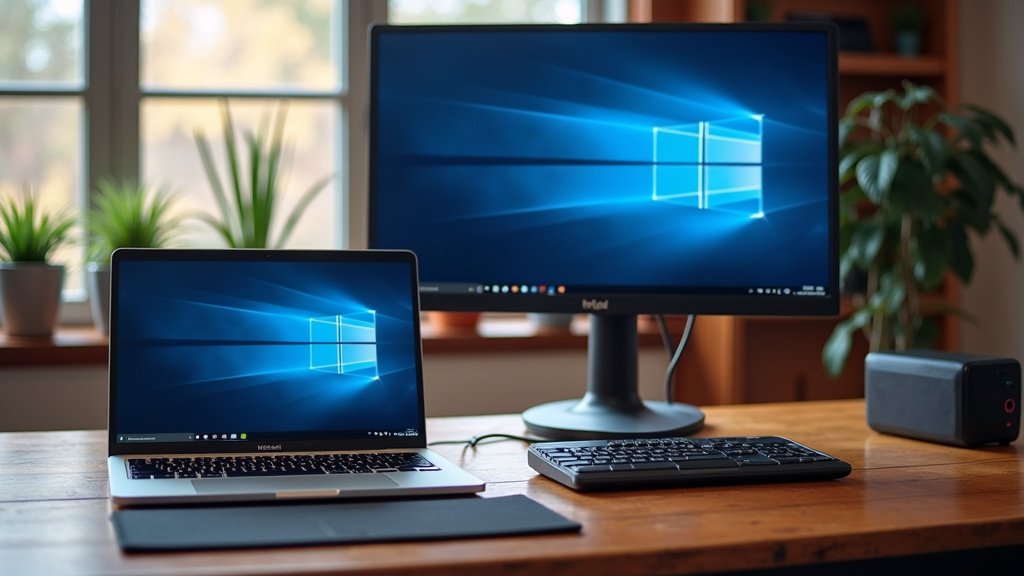
Conclusion
You’ve learned that powering your laptop and monitor with a power station is completely achievable and surprisingly simple. By understanding your devices’ wattage needs and choosing a power station with sufficient output, you create a portable workstation anywhere. Remember to factor in battery capacity for your desired runtime and use power-saving tips to extend it. Now you’re ready to set up your mobile office or entertainment hub. Your next step is to check the wattage on your laptop charger and monitor, then find a power station that meets those requirements.
Frequently Asked Questions
How long will a power station actually last with a laptop and monitor?
Runtime depends on the power station’s battery capacity (measured in Wh) and your devices’ total wattage draw. We found a formula to estimate this: Runtime = (Battery Capacity * Efficiency) / Total Wattage. For example, a 500Wh station powering 95W of devices might last about 4.5 hours.
Can I run multiple monitors from a power station?
Yes, you can run multiple monitors, but you must ensure the power station’s continuous wattage output can handle the combined power draw of your laptop and all monitors. Check the wattage for each device and add them up to confirm compatibility.
What happens if my devices draw more wattage than the power station can supply?
If your devices try to pull more power than the power station can provide continuously, it will likely shut down automatically to protect itself. Some stations may also have a surge wattage limit that can be exceeded by demanding devices on startup.
Do I need special cables to connect my laptop and monitor to a power station?
No, you generally don’t need special cables. Most power stations have standard AC outlets, so you can use the same power cords and adapters that you would plug into a wall outlet. Just plug your device’s charger or monitor’s power cord directly into the power station.
Is it safe to leave my laptop and monitor plugged into a power station overnight?
Yes, it is generally safe, provided the power station is rated to handle the combined wattage of your devices. Power stations are designed to provide stable AC power, similar to a wall outlet, and have built-in safety features. Just ensure the station has enough battery capacity for your needs.