How to Keep a Wifi Router Running During a Power Outage?
On this page (8 sections)
Yes, you absolutely can keep your WiFi running during a power outage! The key is to have a backup power source for your modem and router. This usually involves a portable power station or an uninterruptible power supply (UPS). These devices store energy and can automatically kick in when the main power goes out, ensuring your internet stays on.
Losing internet access during an outage can be frustrating, especially if you rely on it for work, communication, or entertainment. By preparing ahead of time, you can maintain your connection when it matters most. We found that having a dedicated power solution for your networking gear is a simple yet effective way to stay online when the lights go out.
- Have a backup power source ready.
- Use a portable power station or UPS.
- Connect your modem and router to it.
- Test your setup before an outage.
- Keep devices charged and ready.
Let’s walk through the best ways to set up your WiFi to keep running when the power unexpectedly disappears, so you’re never left in the dark (or without your memes).
“`htmlKeeping Your WiFi Online During a Blackout
No one likes being disconnected, especially when the lights go out. You can absolutely keep your WiFi router and modem running during a power outage. The secret is to have a reliable backup power source ready. This means you’ll need a way to power your essential internet devices. Think of it like having a spare battery for your most important gadgets.
Understanding How Power Outages Affect Your WiFi
When the power grid fails, everything plugged into the wall stops working. This includes your modem and your WiFi router. Your internet service provider’s equipment might still be on, but if your home network devices have no power, you won’t be able to get online. Your modem brings the internet signal into your home. Your router then broadcasts that signal wirelessly as WiFi.
The Role of Your Modem and Router
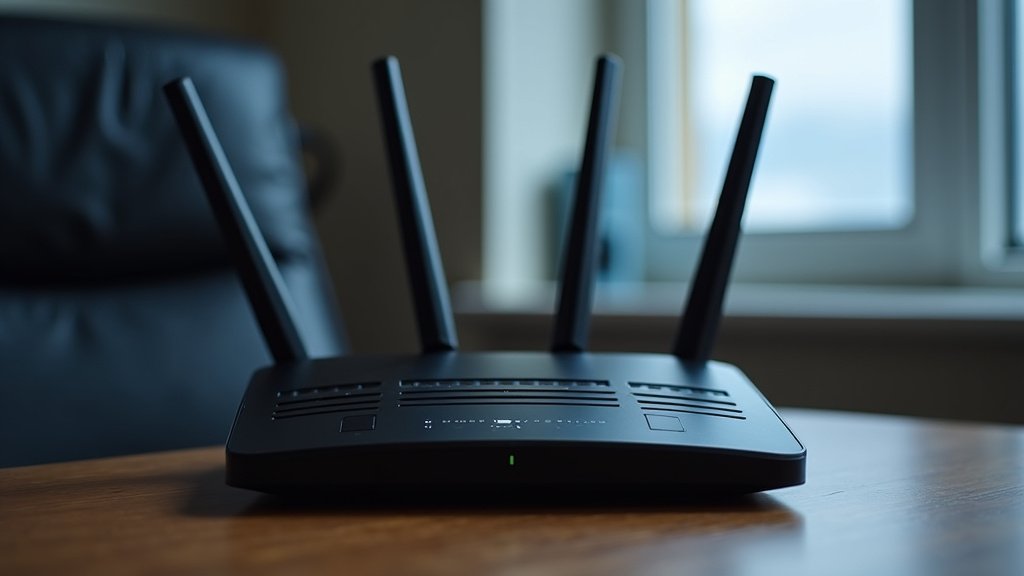
Your modem acts as a translator. It converts the internet signal coming from your provider into a language your computer can understand. Your router takes that signal and creates your home WiFi network. It allows all your devices – phones, laptops, smart TVs – to connect wirelessly. Both devices need continuous power to function.
Why Standard Power Isn’t Enough
Standard wall outlets only work when the main electricity is flowing. During an outage, that flow stops. Many people have power strips, but these also rely on the main power. They don’t store energy. So, when the power goes out, everything plugged into them goes dark, too.
Backup Power Solutions for Your WiFi Gear
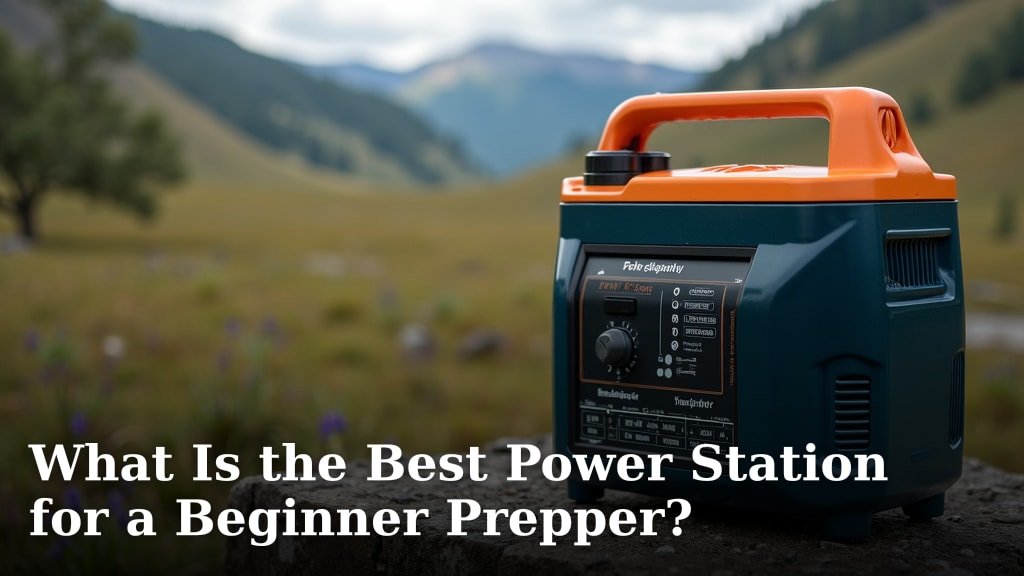
To keep your WiFi alive during an outage, you need a device that stores power. We found that two main types are popular and effective. These are Uninterruptible Power Supplies (UPS) and portable power stations. Both can keep your modem and router humming along.
Uninterruptible Power Supplies (UPS) Explained
A UPS is like a battery backup specifically designed for electronics. It constantly monitors your main power. When it detects an outage, it immediately switches to battery power. This switch is so fast, your devices barely notice. Many UPS units also offer surge protection, which is an added bonus.
How a UPS Works
Inside a UPS, there’s a battery. When the power is on, the UPS charges its battery and also passes power through to your connected devices. When the power goes out, the UPS instantly disconnects from the wall and uses its battery to supply power. Many experts say this instant switch is key for sensitive electronics (APC).
Choosing the Right UPS for Your Needs
The main thing to consider is how long you need your WiFi to stay on. Check the wattage requirements of your modem and router. This information is usually on a sticker on the device itself. You’ll want a UPS that can supply enough wattage. You also need to consider its battery capacity, often measured in VA (Volt-Amperes) or Watt-hours. A larger capacity means longer runtime.
Pros and Cons of UPS
- Pros: Instant power transfer, surge protection, relatively affordable for basic models.
- Cons: Runtime can be limited, may need specific models for high-power devices, can be bulky.
Portable Power Stations: The All-in-One Solution
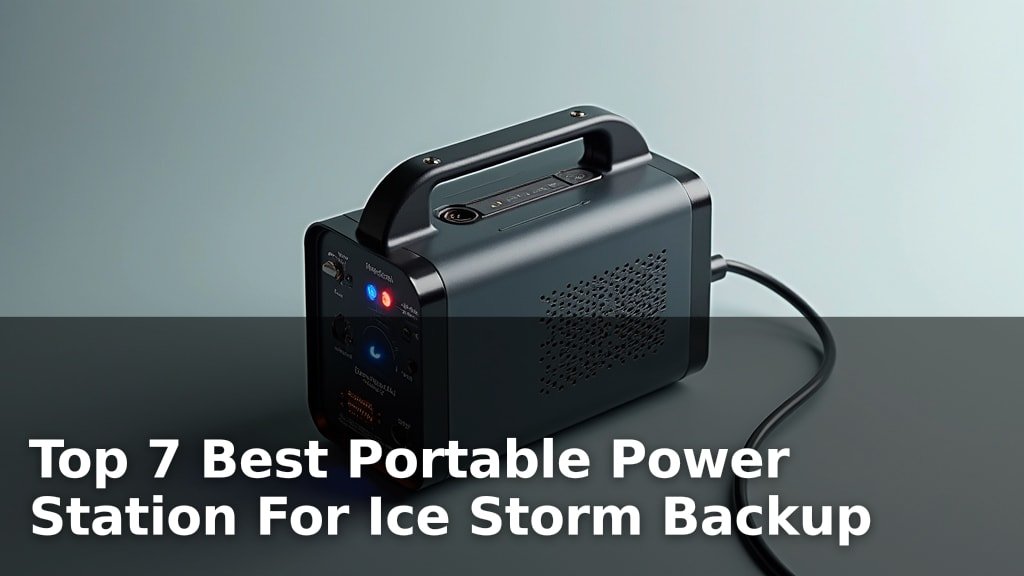
A power station for WiFi backup is essentially a large, rechargeable battery with multiple outlets. They are more versatile than UPS units. You can use them to power not just your router and modem, but also phones, laptops, and even small appliances. They are charged up beforehand, usually via a wall outlet, car charger, or solar panel.
How a Portable Power Station Works
You simply plug your modem and router into the power station’s AC outlets or DC ports, depending on the device. When the power goes out, your devices continue to receive power from the station’s battery. There’s no “switch” like with a UPS; it’s just a continuous power source you’ve connected.
What to Look For in a Power Station
Consider the capacity (Watt-hours) and output wattage. You’ll need enough power to run your modem and router simultaneously. Look for multiple output options, like AC outlets and USB ports, for charging other devices. Some units also have built-in solar charging capabilities, which can be useful for extended outages.
Pros and Cons of Power Stations
- Pros: High capacity for longer runtimes, versatile power options, can charge multiple devices, some can be recharged via solar.
- Cons: Can be more expensive, often larger and heavier, may not have the instant switchover of a UPS.
Setting Up Your Backup Power System
Getting your system ready is straightforward. Once you have your chosen backup power device, you just need to connect your internet gear. It’s always a good idea to do a test run before you actually need it.
Connecting Your Modem and Router
Plug your modem into one of the power station’s outlets or a UPS port. Then, plug your WiFi router into another outlet or port. Make sure the total wattage doesn’t exceed the capacity of your backup power device. Many experts recommend plugging in your modem first, then your router (Cisco).
Testing Your Setup Before an Outage
This is a crucial step. To test, unplug the power station or UPS from the wall. Your modem and router should remain powered on. Check your WiFi signal on your phone or computer. You should still be able to connect to the internet. This confirms your setup is working correctly.
Managing Power for Other Devices
Your backup power source can also help keep other essential devices online. You might want to power a laptop for work or communication. Or perhaps a smartphone charger. Prioritize what you need most. A power station with higher capacity is better if you need to power multiple items. For a broader setup, see our guide to powering a home office during an outage.
Maximizing Runtime During an Outage
You’ve got your backup power ready. Now, how can you make sure it lasts as long as possible? Small adjustments can make a big difference when every minute of connection counts.
Conserving Router and Modem Power
Modems and routers don’t use a ton of power, but every bit helps. You can turn off any smart home devices or other gadgets that aren’t essential during the outage. Less connected devices means less strain on your backup power.
Tips for Extended Power Loss
If you have a portable power station, consider using its DC output ports if available. These are often more energy-efficient than the AC outlets. Additionally, if you have a solar panel accessory for your power station, set it up to recharge the battery during daylight hours. This can dramatically extend your internet uptime.
A Quick Checklist for Preparedness
Here’s a simple checklist to ensure you’re ready:
- Choose and purchase a UPS or portable power station.
- Confirm your modem and router’s power needs.
- Connect your modem and router to the backup device.
- Test the setup by simulating a power outage.
- Keep the backup device fully charged.
- Identify other essential devices you might need to power.
Conclusion
Keeping your WiFi connected during a power outage is entirely achievable with a little preparation. You’ve learned that the key lies in having a backup power source like a UPS or a portable power station for your modem and router. By understanding how your internet gear works and selecting the right backup solution, you can maintain your connection when you need it most. Don’t wait for the next blackout; test your setup today to ensure you’re always online.
Frequently Asked Questions
How long will a UPS or power station keep my WiFi running?
The WiFi router runtime depends on the capacity of your backup device and the power draw of your modem and router. A basic UPS might offer 30 minutes to a couple of hours, while larger power stations can provide many hours, even days, of power. Always check the Watt-hour rating and your devices’ power needs.
Can I just plug my modem and router into a portable power station?
Yes, absolutely. A portable power station is designed for this purpose. You simply plug your modem and router into its available outlets. It acts as a standalone power source, ensuring your internet equipment stays on when the main power fails.
Do I need to unplug my UPS or power station when the power comes back on?
A UPS will automatically switch back to wall power once it’s available, and its battery will start recharging. For a portable power station, you’ll typically unplug your devices from it and plug them back into the wall outlet as usual. The power station will then need to be recharged for future use.
What’s the difference between a UPS and a portable power station for WiFi backup?
A UPS is primarily a battery backup with surge protection that instantly switches to battery power during an outage. A portable power station is a larger, more versatile battery with multiple outlets, suitable for powering various devices for longer periods, but without the instant switchover feature of a UPS.
Should I connect my modem or router first to the backup power?
It’s generally recommended to plug in your modem first, then your WiFi router. This ensures that the modem establishes its internet connection before the router starts broadcasting the WiFi signal. This sequence helps in establishing a stable connection more reliably.