How to Pair a Portable Power Station with an App?
On this page (8 sections)
- Connecting Your Smart Power Station: App Pairing Made Simple
- Getting Started: What You’ll Need
- The Pairing Process: Step-by-Step Guide
- Troubleshooting Common Pairing Issues
- Maximizing Your App Experience: Firmware Updates and Features
- A Quick Checklist for Successful Pairing
- Conclusion
- Frequently Asked Questions
Pairing your portable power station with an app is totally doable and makes managing your device way easier. You just need to make sure your power station has built-in Wi-Fi or Bluetooth capabilities and download the manufacturer’s specific app. It’s a pretty straightforward process, and we’ll guide you through it.
Connecting your power station to its app gives you a direct line to its status. You can monitor battery levels, control output ports, and even get important updates, all from your phone. Many users find this level of control incredibly convenient for everything from camping trips to home backup power. Think of it as giving your power station a smart upgrade.
- Download the correct app.
- Ensure Bluetooth or Wi-Fi is on.
- Follow in-app pairing instructions.
- Check for firmware updates.
- Enjoy remote control and monitoring.
Ready to get your power station connected? Let’s walk through exactly how this works step by step, so you can start enjoying all the smart features your portable power station has to offer.
Connecting Your Smart Power Station: App Pairing Made Simple
Pairing your portable power station with its companion app is easier than you might think. This connection lets you monitor and control your device right from your smartphone. You’ll get real-time updates on battery life and power output. It’s like having a remote control for your electricity.
Getting Started: What You’ll Need
Before you can connect, make sure your power station is ready for the digital world. Most modern units come equipped for app connectivity. You just need to confirm a couple of things about your specific model.
Confirming Your Power Station’s Connectivity Features
The first step is to verify if your power station has built-in Wi-Fi or Bluetooth. This information is usually found in the product manual or on the manufacturer’s website. If your model doesn’t explicitly state these features, it might not be compatible with an app. Some older models may not have this capability, which is perfectly fine. They still work great as standalone units.
Downloading the Manufacturer’s App
Once you’ve confirmed your power station has Wi-Fi or Bluetooth, you’ll need the correct app. Search for the specific app recommended by the power station’s brand. You can find this information in your user manual or by visiting the manufacturer’s support page. Downloading the wrong app won’t work and could be a waste of time. Always use the official app from your power station’s maker.
You can usually find these apps in your device’s app store. Just search for the brand name of your power station. For example, if you have a Jackery power station, you’d look for the “Jackery” app. If you have a Bluetti, you’d search for the “Bluetti” app. These apps are designed to work perfectly with their respective devices.
The Pairing Process: Step-by-Step Guide
Now that you have the app, let’s get your power station connected. The process is generally straightforward. Follow these steps carefully for a smooth connection.
Step 1: Power On and Prepare Your Devices
Turn on your portable power station. Ensure it has enough battery charge to complete the pairing process. Next, power on your smartphone or tablet. Make sure your phone’s operating system is up to date. Outdated software can sometimes cause connection issues.
Step 2: Enable Bluetooth or Wi-Fi on Your Phone
This is a critical step. You’ll need to turn on your phone’s Bluetooth or Wi-Fi. For Bluetooth pairing, simply go into your phone’s settings and toggle Bluetooth on. For Wi-Fi pairing, ensure your phone is connected to a stable Wi-Fi network. The power station will also need to be in pairing mode or connected to the same Wi-Fi network.
Consult your power station’s manual to see if it uses Bluetooth or Wi-Fi for app connection. Some devices use Bluetooth for the initial setup, then switch to Wi-Fi for ongoing monitoring. Others might exclusively use one or the other. Knowing this will save you some confusion.
Step 3: Initiate Pairing Through the App
Open the manufacturer’s app you downloaded. Most apps will guide you through the pairing process immediately upon opening. You’ll likely see an option like “Add Device,” “Connect New Power Station,” or a similar prompt. Tap on this option to begin.
The app will then start searching for nearby Bluetooth devices or prompt you to enter your Wi-Fi network details. If you’re using Bluetooth, your power station should appear in a list of available devices. Select it to connect. If you’re using Wi-Fi, you’ll be asked to select your home Wi-Fi network and enter its password.
Step 4: Follow In-App Instructions and Confirm Connection
The app will provide on-screen prompts to guide you. You might need to press a button on your power station to confirm pairing. This is a security measure to ensure you’re actually present and connecting your own device. Pay close attention to what the app asks you to do.
Once connected, the app will confirm the successful pairing. You should now see your power station listed within the app. This means you’re ready to start using all its smart features. If the connection fails, don’t worry! You can always try again.
Troubleshooting Common Pairing Issues
Sometimes, things don’t go as smoothly as planned. If you’re having trouble connecting, don’t get discouraged. Most issues are simple to fix. Let’s look at some common problems and their solutions.
Connection Fails or Device Not Found
If the app can’t find your power station, double-check that Bluetooth or Wi-Fi is enabled on both your phone and the power station. Make sure the power station is in pairing mode. This is often indicated by a blinking light on the unit. Also, try moving your phone closer to the power station. Physical distance can sometimes interfere with the signal.
Restarting both devices can often resolve connectivity glitches. Turn off your power station and phone, wait a minute, then turn them back on and try pairing again. This simple step refreshes the devices’ connections and can clear temporary software bugs.
Wi-Fi Connection Problems
For Wi-Fi connections, ensure you’re connecting to a 2.4GHz Wi-Fi network. Many smart devices, including power stations, do not support 5GHz networks. Check your router settings if you’re unsure. Also, verify that you’ve entered the Wi-Fi password correctly. Passwords are case-sensitive.
If you have a mesh Wi-Fi system, ensure your power station is connecting to the strongest signal. Sometimes, placing the power station closer to the main router or a Wi-Fi extender can help. We found that some users experienced issues when their router was too far away from the power station. Keeping them within a reasonable range is important.
App Not Responding or Crashing
If the app itself is acting up, try clearing the app’s cache. This can be done through your phone’s settings menu under “Apps.” You might also try uninstalling and then reinstalling the app. This ensures you have the latest, clean version installed.
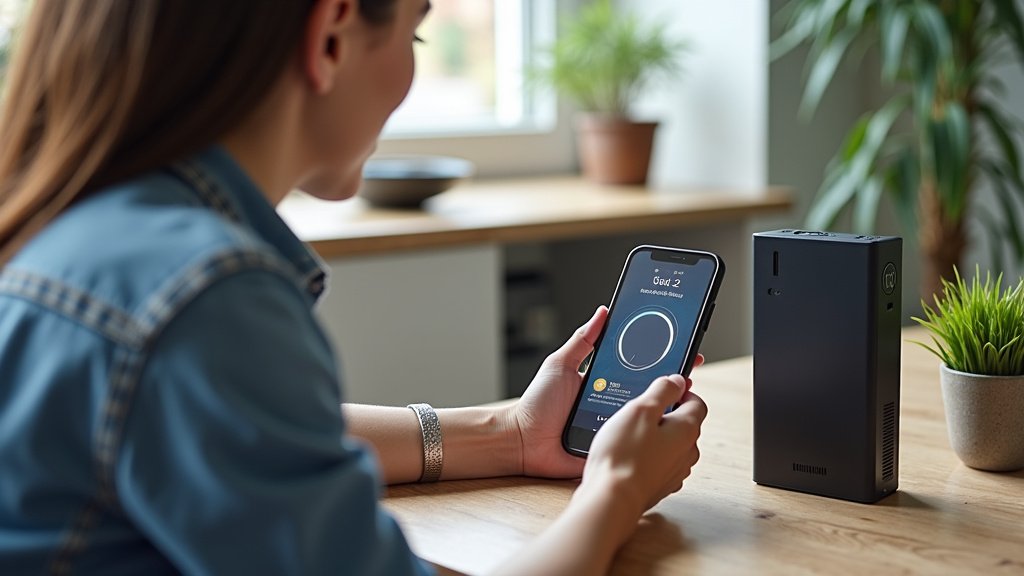
Maximizing Your App Experience: Firmware Updates and Features
Once your power station is successfully paired, you’ve unlocked a new level of convenience. But there’s more to explore!
Checking for and Installing Firmware Updates
Your power station’s app is also the gateway to its firmware updates. Manufacturers regularly release updates to improve performance, add new features, or fix bugs. It’s important to keep your device’s firmware up-to-date. The app will usually notify you when an update is available.
Follow the in-app instructions to download and install the firmware. Ensure your power station has a good battery level (above 50% is often recommended) and that your phone remains connected to it throughout the update process. Do not turn off the power station or the app during an update.
Exploring App Features: Monitoring and Control
With your power station connected, you can now monitor its status remotely. You can see the exact battery percentage, how much power is being drawn from each outlet (input and output), and estimated remaining runtime. This information is incredibly useful for planning power usage.
Many apps also allow you to control the power outlets. You can turn specific AC or DC ports on or off directly from your phone. This means you don’t have to walk over to the power station to shut down an outlet you’re no longer using. Some advanced models even let you set schedules or power limits.
Understanding Your Power Station’s Performance Data
Some apps provide historical data on your power station’s usage. You can track energy consumption over days, weeks, or months. This can help you understand your power habits and identify ways to save energy. Many experts note that tracking energy use is a key step towards efficiency (U.S. Department of Energy).
This data can also be helpful for troubleshooting. If you notice unusual power draw or battery drain, reviewing the app’s data logs might provide clues. It’s like having a personal power consultant in your pocket.
A Quick Checklist for Successful Pairing
Let’s recap the essentials to ensure you get connected smoothly:
- Verify Wi-Fi/Bluetooth: Confirm your power station has these capabilities.
- Download Correct App: Get the official app from the manufacturer.
- Enable Phone Connectivity: Turn on Bluetooth or Wi-Fi on your smartphone.
- Follow App Prompts: Pay attention to in-app instructions for pairing.
- Update Firmware: Keep your power station’s software current via the app.
- Explore Features: Enjoy remote monitoring and control of your device.
Conclusion
You’ve now learned how to connect your portable power station to its app. This smart upgrade gives you remote control and real-time monitoring. Confirming Wi-Fi or Bluetooth is key. Downloading the correct app and following the pairing steps makes it simple. Remember to keep your firmware updated for the best performance. Take a moment to explore all the app features your power station offers. Your next step is to open your power station’s app and initiate the connection process right now.
Frequently Asked Questions
What if my power station doesn’t have Wi-Fi or Bluetooth?
If your power station lacks built-in Wi-Fi or Bluetooth, it likely won’t support app connectivity. That’s perfectly fine! These units still function excellently as standalone power sources. You’ll manage them directly through the physical buttons and display on the unit itself.
Can I use any app to connect to my power station?
No, you must use the official app provided by your power station’s manufacturer. Downloading a third-party or incorrect app will not work. Always check your user manual or the manufacturer’s website for the correct app name and download link.
How do I put my power station into pairing mode?
The method for entering pairing mode varies by brand. Typically, you’ll need to press and hold a specific button on the power station for a few seconds until a light blinks. Consult your power station’s user manual for the exact instructions for your model.
What should I do if the app says my firmware is outdated?
It’s important to update your firmware when prompted by the app. Ensure your power station has sufficient battery charge and that your phone stays connected during the update. This process improves performance and can add new features to your device.
Can I control multiple power stations from one app?
This depends on the specific app and manufacturer. Some apps are designed to manage multiple devices, while others only support a single power station per account. Check the app’s features list or the manufacturer’s support documentation to confirm if it supports multi-device management.